New: move your cars and customers from Excel in minutes
Download the template, fill it, upload it, and review every row before saving.
By RWAD team · Updated 8 October 2026
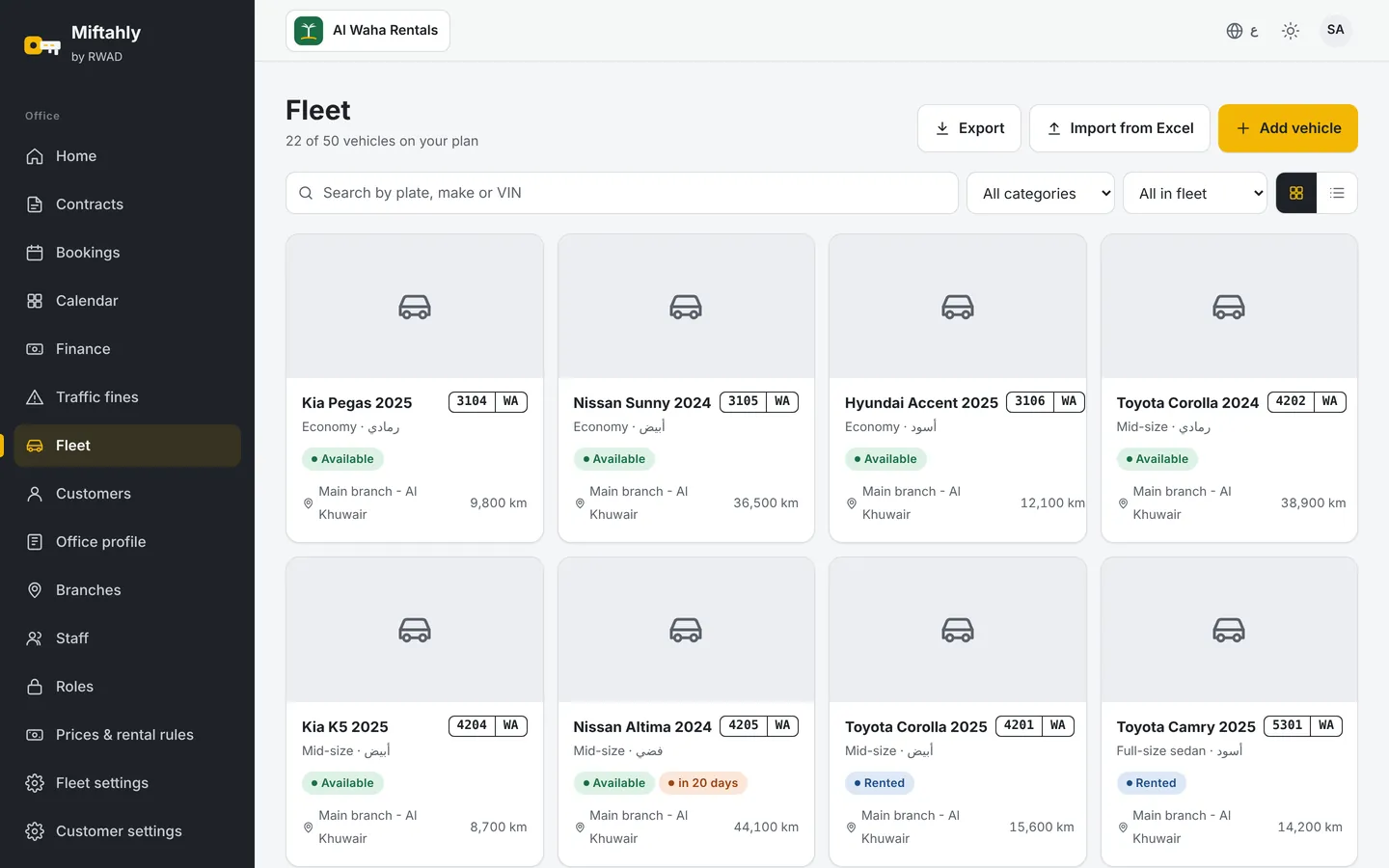
Entering the fleet and customers one by one is the first thing that delays any office from moving to a new system. So Miftahly now lets you upload cars and customers from an Excel file in one go, with a full review before saving.
How it works
- Download the template from the "Upload from Excel" button on the fleet or customers page. Orange columns are required and grey ones optional; an "Instructions" sheet has examples.
- Fill in the file or paste your data from your current sheet. Pick lists prevent common mistakes, such as writing a category or fuel type in different ways.
- Upload the file as .xlsx or .csv, up to 500 rows at a time.
- Review the result: every row is checked, with errors and warnings shown before anything is saved.
- Save only the valid rows, and download the error rows in a separate file to fix and upload again.
What the system checks
- Missing required fields.
- Duplicates inside the file and against existing records, such as the same plate number.
- Date, number and phone formats.
- Values that do not match the approved lists.
Why it matters
- Start in a day instead of weeks of manual entry.
- Clean data from the start, because errors are caught before saving, not after.
- Nothing is lost: rejected rows come back to you in a clear file.
Try the upload during the free trial, and if you need help preparing the file, message us on WhatsApp.
Run your whole rental office from one place
14-day free trial, no card needed
Related articles

The new Miftahly website is live
Clear pricing with a calculator, a comparison with notebooks and Excel, practical guides and demo requests.
Read more
New: maintenance with an expected end date
A car in maintenance stays blocked until its date and only becomes available when staff confirm.
Read more
VAT on car rental contracts in Oman: what an office needs to know
The 5% rate, mandatory and voluntary registration thresholds, and tax invoices: a simple guide for rental offices.
Read more